
Goal
Prove the first household workflow
Finish with one shared folder another family member can open, one optional phone photo backup path understood, and a clear next step for backup if you need redundancy.
Before
Before you start
- The server is running.
- One app or browser can sign in.
- If you plan to test backup, have an object-storage target ready.
- You have a few non-critical files for the first test.
1. Create a small folder
Use the app or WebUI to create a folder such as Family Docs. Add a few files first, not the whole household archive.
2. Add one person
After the admin account exists, the other person can create or sign in to their own account from the app. Keep names recognizable so sharing and support questions are easy later.
3. Share the folder
Choose read-only for people who should only view files. Choose read-write only when they should add, edit, or delete files.
4. Check another device
Open the folder from another native app or the WebUI and confirm the files appear.
5. Add phone photos only after files work
When you have mobile beta access on iOS or Android, enable photo backup only for a phone that should copy media to the server.
My Drive / Camera Uploads / YYYY / MM. The year and month folders are created from the photo date.
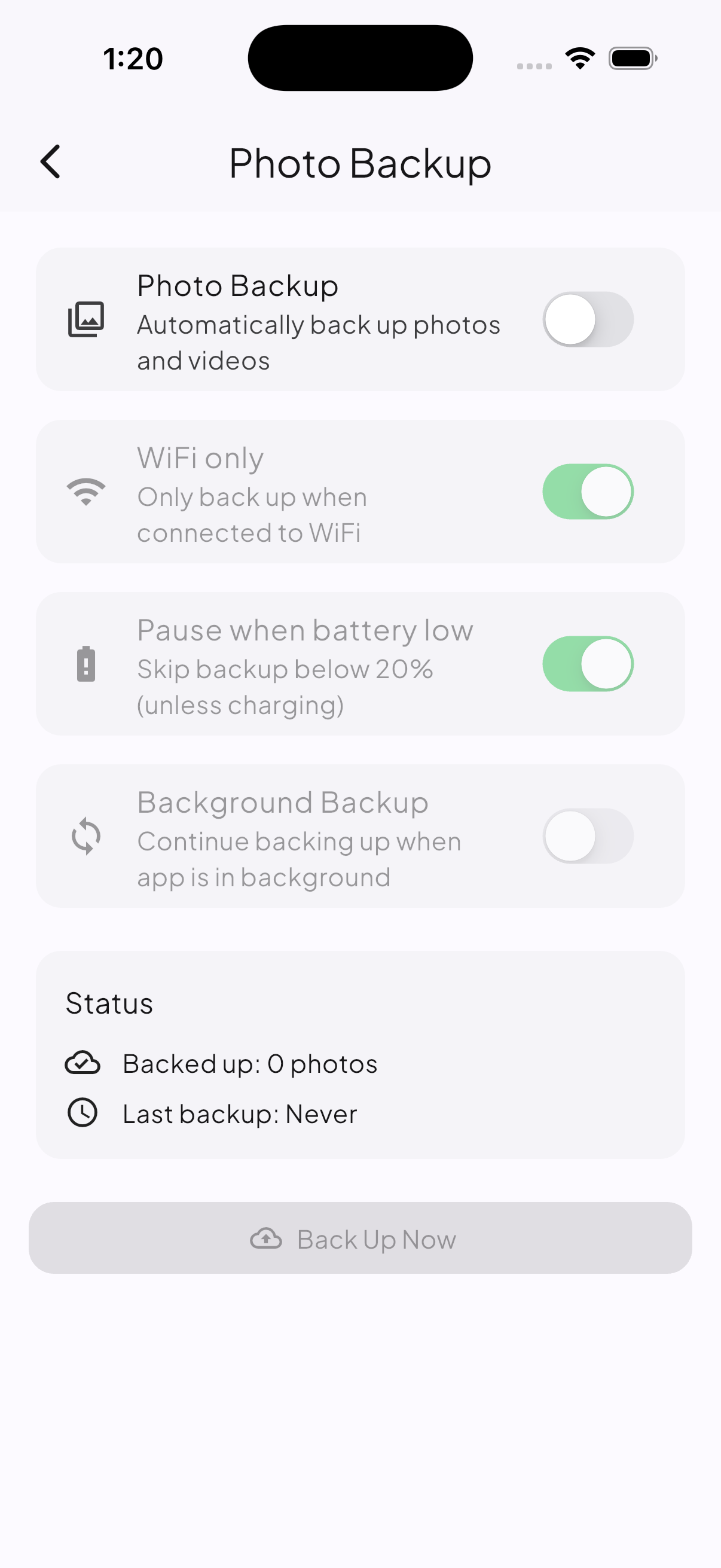
Start with one phone and one small manual run. Confirm the photo appears in the expected year and month before expanding to more devices.
6. Check redundancy if backup is enabled
- Upload one small file.
- If backup is enabled, confirm backup status has handled it.
- If photo backup is enabled, confirm one photo appears under
Camera Uploads. - Restore or download the file.
- Open it and confirm the contents.
Success check
At least two users can see the folder, permissions match the family role, each person understands their own My Drive, and any phone uploads land under Camera Uploads.
Next action