
Goal
Prove a compatible tool path
Finish with a configured WebDAV client or rclone remote that can list, copy, and verify a small file.
Before
Before you start
- The server is running.
- You can sign in with a SyncVisor username and password.
- The certificate warning, if any, is understood and resolved.
- You have a small test file ready.
1. Copy the WebDAV URL
Open Server Manager and copy the WebDAV address. It should end with /webdav/.
2. Configure rclone
rclone config
name: syncvisor
type: webdav
url: https://<server-address>:<port>/webdav/
vendor: other
user: <syncvisor-username>
pass: <syncvisor-password>
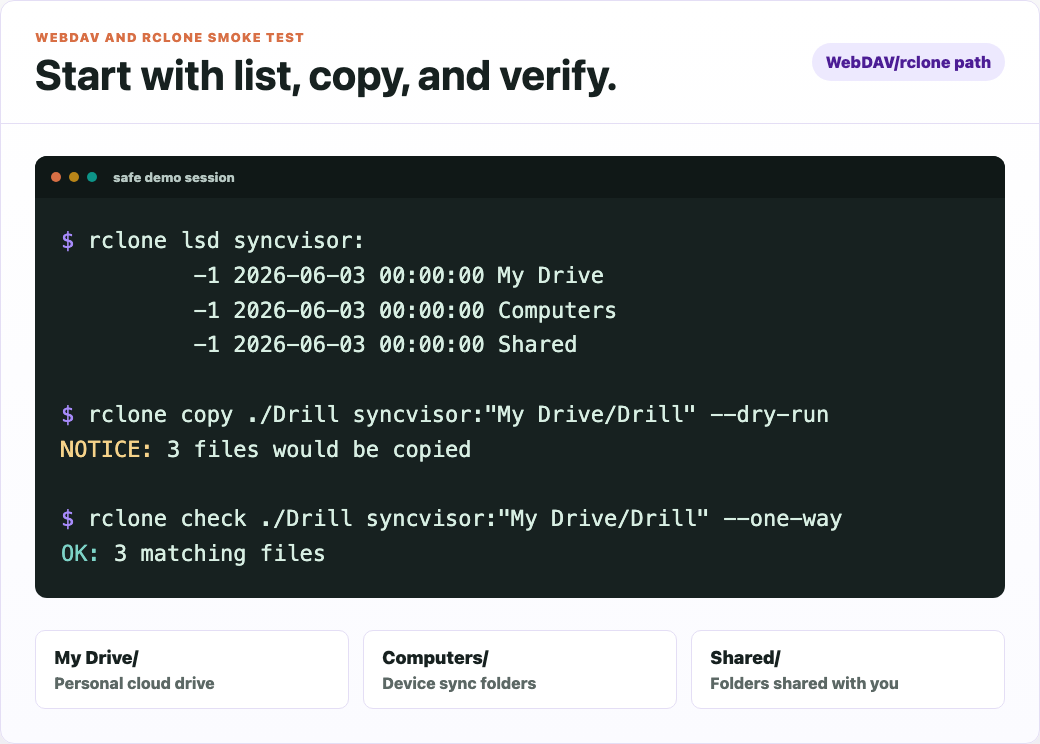
3. Run small checks
rclone lsd syncvisor:
rclone ls "syncvisor:My Drive"
rclone copy ./test.txt "syncvisor:My Drive/"
rclone check ./test-folder "syncvisor:My Drive/test-folder"
4. Connect GUI WebDAV clients
- Cyberduck: choose WebDAV HTTPS and paste the endpoint.
- macOS Finder: use Go, Connect to Server.
- Windows Explorer: add a network location with the WebDAV URL.
5. Understand the root layout
/webdav/
  My Drive/
  Computers/
  Shared/
Success check
You can list My Drive, copy one test file, and verify that the file appears in a native app or the WebUI.
Next action